How to transcribe WhatsApp voice messages with Hebrish
Hebrish is for writing by voice, but the same model can read voice messages too. Anti-Vocale is a free, open-source Android app that transcribes voice messages on your phone, and it can load Sabich. Once it's set up, a WhatsApp voice note turns into text without the audio leaving the phone, and the Hebrew words in it come out spelled the Hebrish way.
Anti-Vocale isn't part of Hebrish; it's made by RisorseArtificiali. I tried this setup on my own phone on 2026-11-05 with Sabich, and it works.
Before you start
- You need the F-Droid version of Hebrish. Hebrish has to keep its model files in a folder other apps can open, and that takes Android's All files access permission. Google Play restricts that permission, so the Play build leaves it out. Setup is at the end of this post.
- You need room for a second copy of Sabich. Anti-Vocale copies the model into its own storage when you import it, about 630 MB.
- It's for English with Hebrew words in it. That's what Sabich is trained on. It isn't a Hebrew speech-to-text model, so a voice note entirely in Hebrew won't come out as Hebrew.
Set it up
- Choose a folder for your models in Hebrish. Open Models → Model location → Choose folder, allow All files access when Android asks, and pick or create a folder such as
Hebrish. If you've already downloaded Sabich, it's moved there for you, so there's no second download. If you haven't, download it now and it goes straight into that folder. - Install Anti-Vocale. It's in the main F-Droid repository: Anti-Vocale on F-Droid.
- Start the import. In Anti-Vocale, open the Models tab, expand Advanced and tap Import from this device.
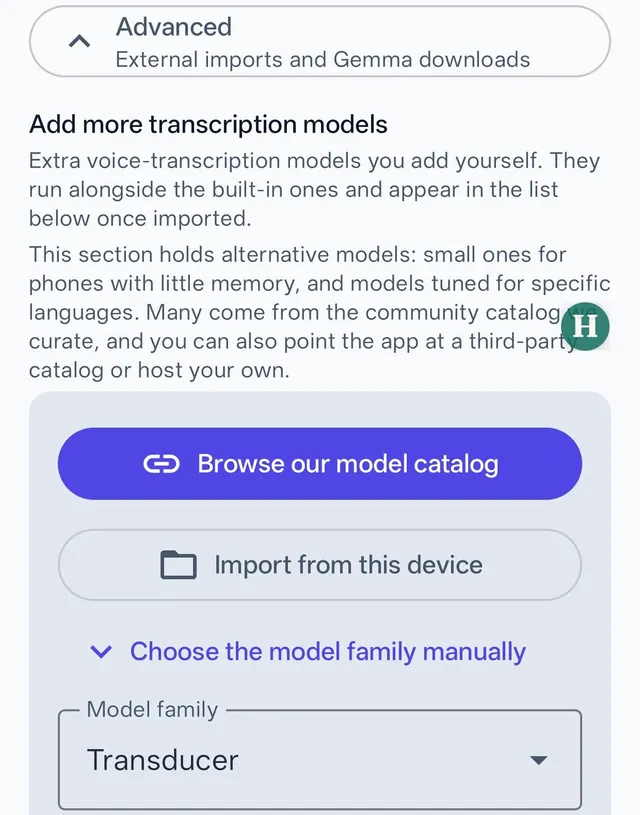
- Point it at the Sabich folder. Open the folder you chose in step 1, then
Sabich-Rolling-sherpa-onnx-int8, then the folder inside it, which is named after the model version. You're in the right place when you can seeencoder.int8.onnx,decoder.int8.onnx,joiner.int8.onnxandtokens.txt. Tap Use this folder, then Allow.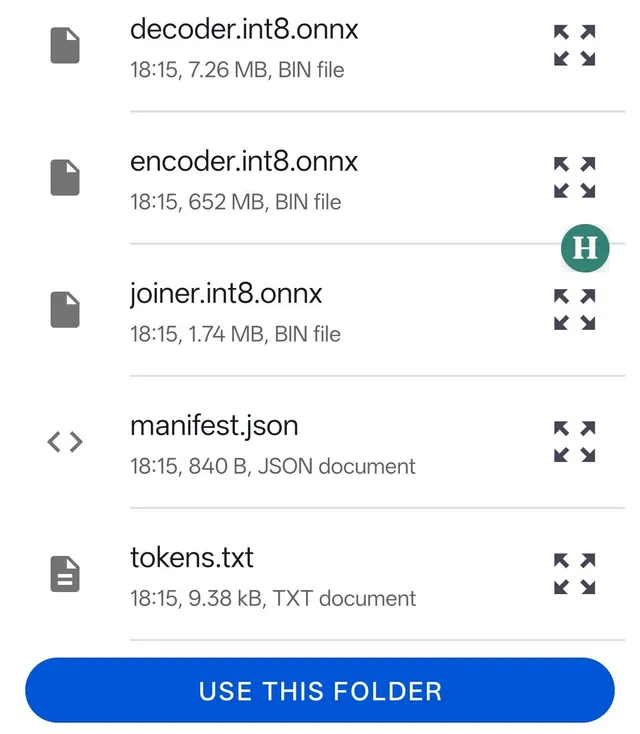
- Choose Transducer. When Anti-Vocale asks which family the model is, tap Transducer. Sabich then appears in the list of imported models; make sure it's selected.
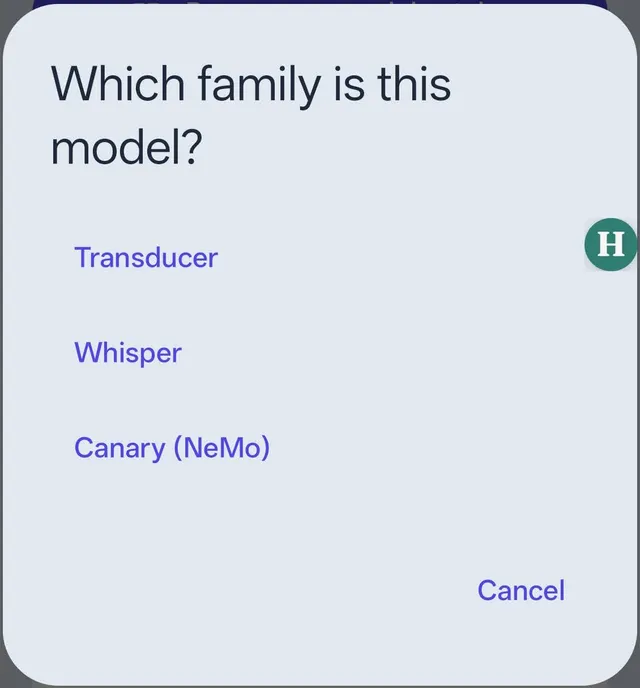
- Turn on automatic transcription. In Anti-Vocale, go to Settings → Voice notes. In the WhatsApp section, turn transcription on, grant audio access and pick the
WhatsApp Voice Notesfolder when the app guides you to it.
Transcribe a voice message
Automatically. New voice notes are transcribed as they arrive. The text appears in a notification and on Anti-Vocale's History tab. If your phone suspends apps in the background and notes get missed, Anti-Vocale's developer recommends excluding it from battery optimization.
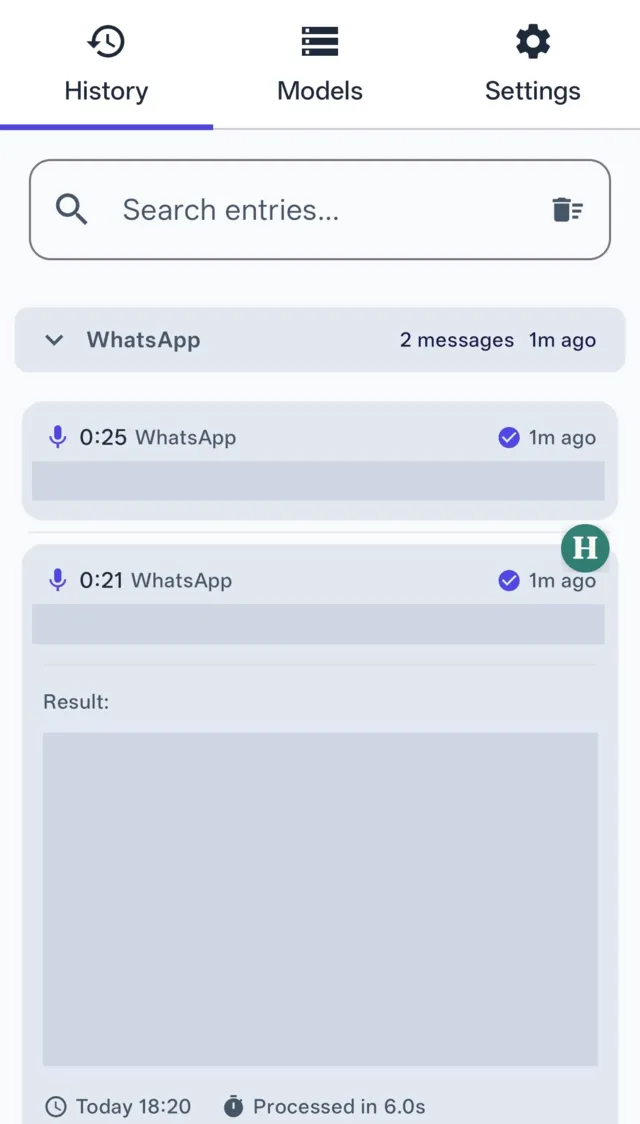
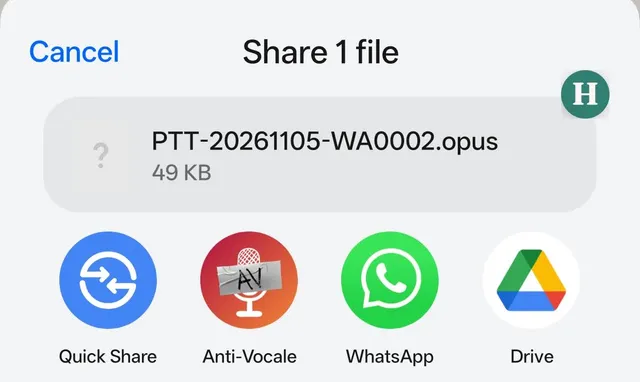
One at a time. In WhatsApp, long-press the voice note, tap Share and choose Anti-Vocale. WhatsApp shares it as an .opus file, which Anti-Vocale reads directly.
When Sabich updates
Anti-Vocale keeps its own copy, so it doesn't follow Hebrish's rolling updates. To move to a newer Sabich, update it in Hebrish, then repeat steps 3 to 5 with the new version's folder. The import adds a new entry, so delete the old one in Anti-Vocale to get the space back.
Install Hebrish from F-Droid
Hebrish has its own F-Droid repository. Add it once and new versions arrive as ordinary app updates.
- Install F-Droid if you don't have it.
- On your phone, tap Add the Hebrish repository and open the link with F-Droid. On a computer, scan the QR code below with your phone instead.
- Confirm Add repository. Then search F-Droid for Hebrish and install it.
- Open Hebrish and follow the setup checklist.

To add it by hand: in F-Droid open Settings → Repositories, tap +, and enter
https://fdroid.hebrish.app/repowith this fingerprint (F-Droid fills it in when you use the link):
EF8C2D63D994A10CD489A978585510B47E47452EC09248591CB2C0F39C2BC1FAOther apps that work with Hebrish are listed on the download page.