Floating mic
A mic button that floats over every app. Your regular keyboard stays up and the text goes straight into the field. It's optional.
Turn it on
Open Floating mic → Turn it on: step by step. The guide has a button for each settings page. In short:
- Open Settings → Accessibility → Downloaded apps (on some phones Installed apps or Installed services) → Hebrish floating mic and try to turn it on.
- On Android 13 and newer, an app installed from outside a store is restricted, so the switch is greyed out. After that first try, open Hebrish's App info, tap ⋮ (top right) and choose Allow restricted settings. The item only appears after the first try.
- Go back to Accessibility and turn it on.
Then let it run unrestricted on battery, or the phone may stop it in the background.
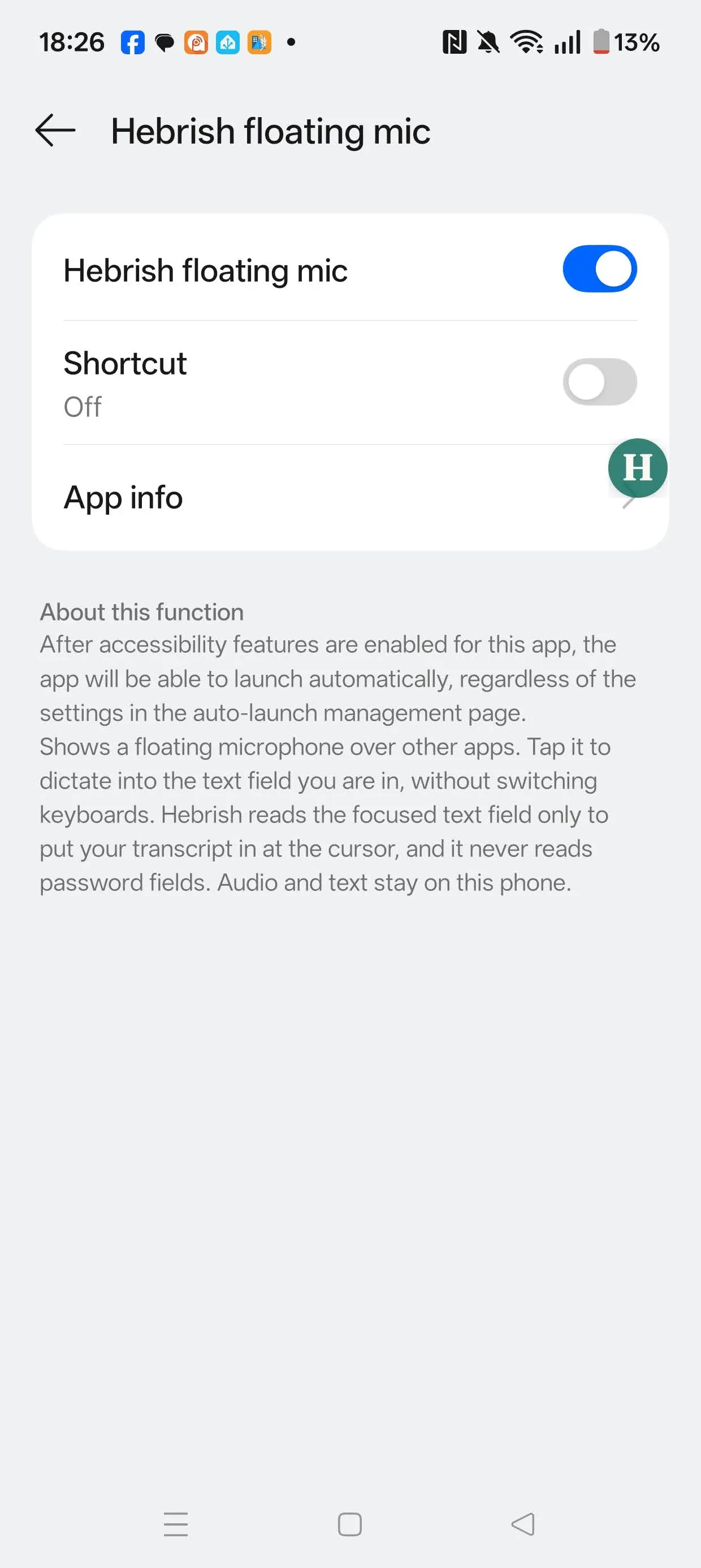
Hebrish reads the focused text field only to put your transcript in, and which app is in focus only to hide the mic in apps you choose. Password fields are never touched.
Talk
- Tap a text field.
- Tap the mic and talk. The mic turns red (it's now Stop) and a bar opens beside it with a timer, Pause / Resume, Retake and Discard.
- Tap Stop. The text goes in at the cursor.
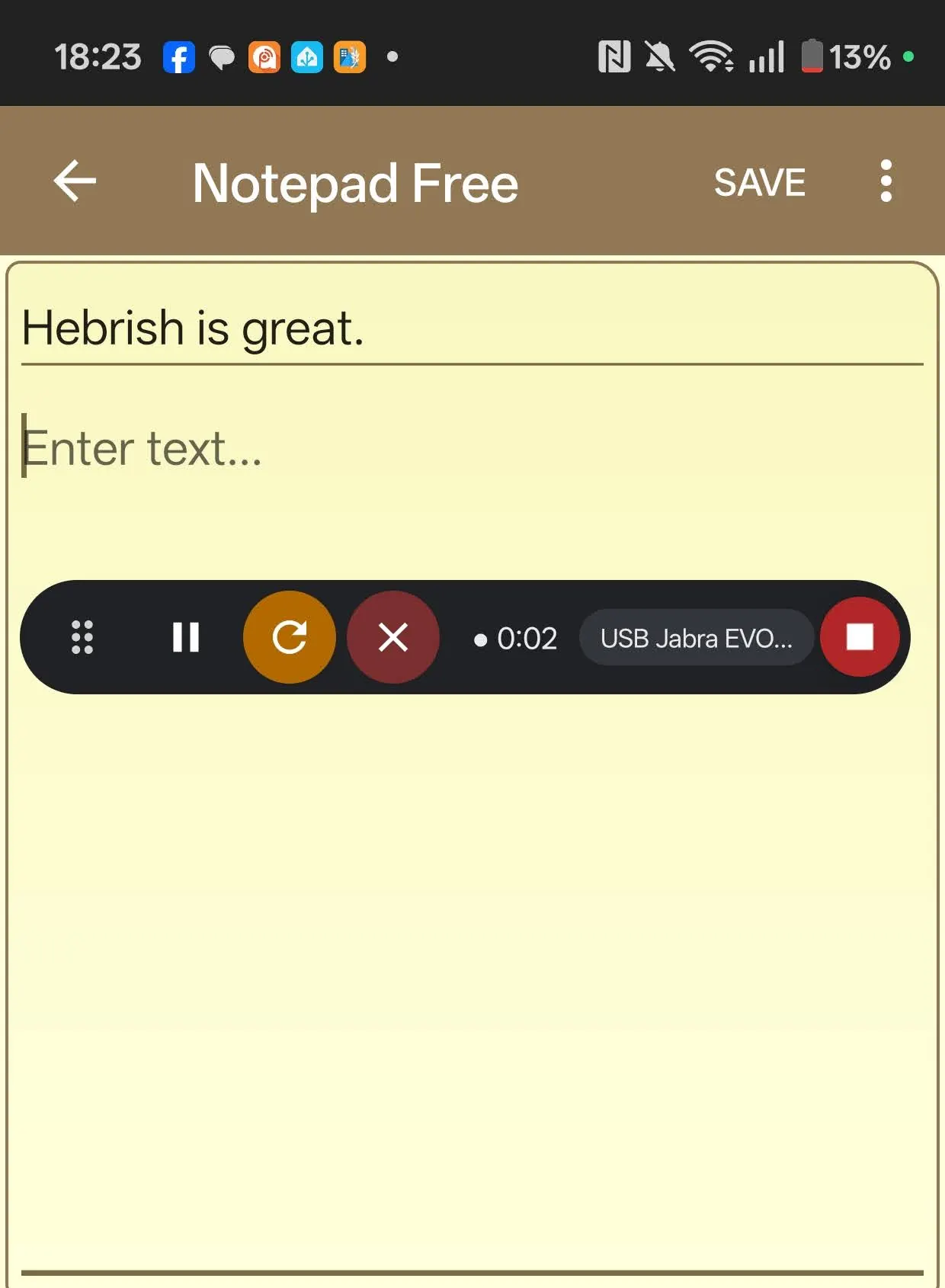
Takes can run 20 minutes.
Change the mic: tap the mic name in the bar to see every connected mic as an icon, even during a take. Your choice lasts for the session.
Missed the field? If no text field has focus when the text is ready, the mic shows Insert. Tap a field, then Insert. The text is on the clipboard as well.
Shortcuts on the idle mic: long-press to insert the last transcript again. Double-tap to shrink it to a small dot; tap the dot to bring it back.
Place and look
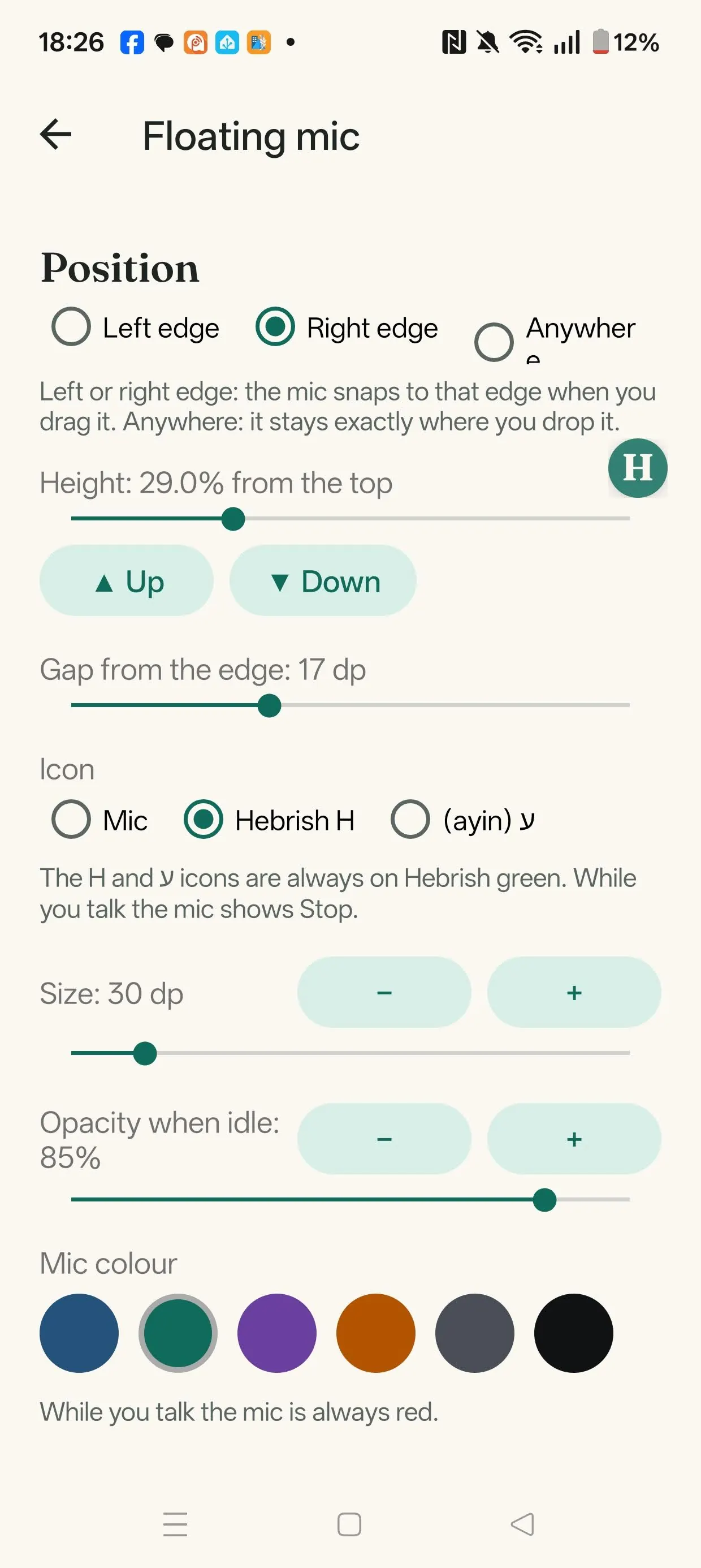
Drag the mic anywhere. With Left edge or Right edge it snaps to the nearer edge; with Anywhere it stays where you drop it. The Floating mic screen sets the same things directly:
- Height, place across the screen, gap from the edge, size and idle opacity.
- Icon: the mic, the Hebrish H or the Hebrew letter ayin. Mic colour too; while you talk it's always red.
- Show only while a text field is focused hides it the rest of the time.
- Hide in these apps: the mic stays out of the way while a ticked app is in focus. If a take is open when you switch to one, the bar stays until the take is finished. The list is saved on this phone.
- While you talk: the bar can run along the edge or across the screen, with its own size and background opacity, and a Clear bar with buttons only. Drag it by its grip to move it off what you're writing.
- Replace placeholder text such as "Message": some apps, WhatsApp among them, report their grey placeholder as real text. This stops dictation landing after it.
"Pasted from your clipboard"
On Android 13 and newer the floating mic types the text directly, so you normally won't see this. Where it can't, it falls back to pasting, and Android shows that notice. Apps can't hide it, but you can turn it off in Settings → Privacy → Show clipboard access. If it keeps appearing on Android 13 or newer after an update, turn the floating mic off and on again in Accessibility settings.