Voice keyboard
The voice keyboard opens from your regular keyboard's mic key, records, types the text in and switches back.
Set it up with your keyboard
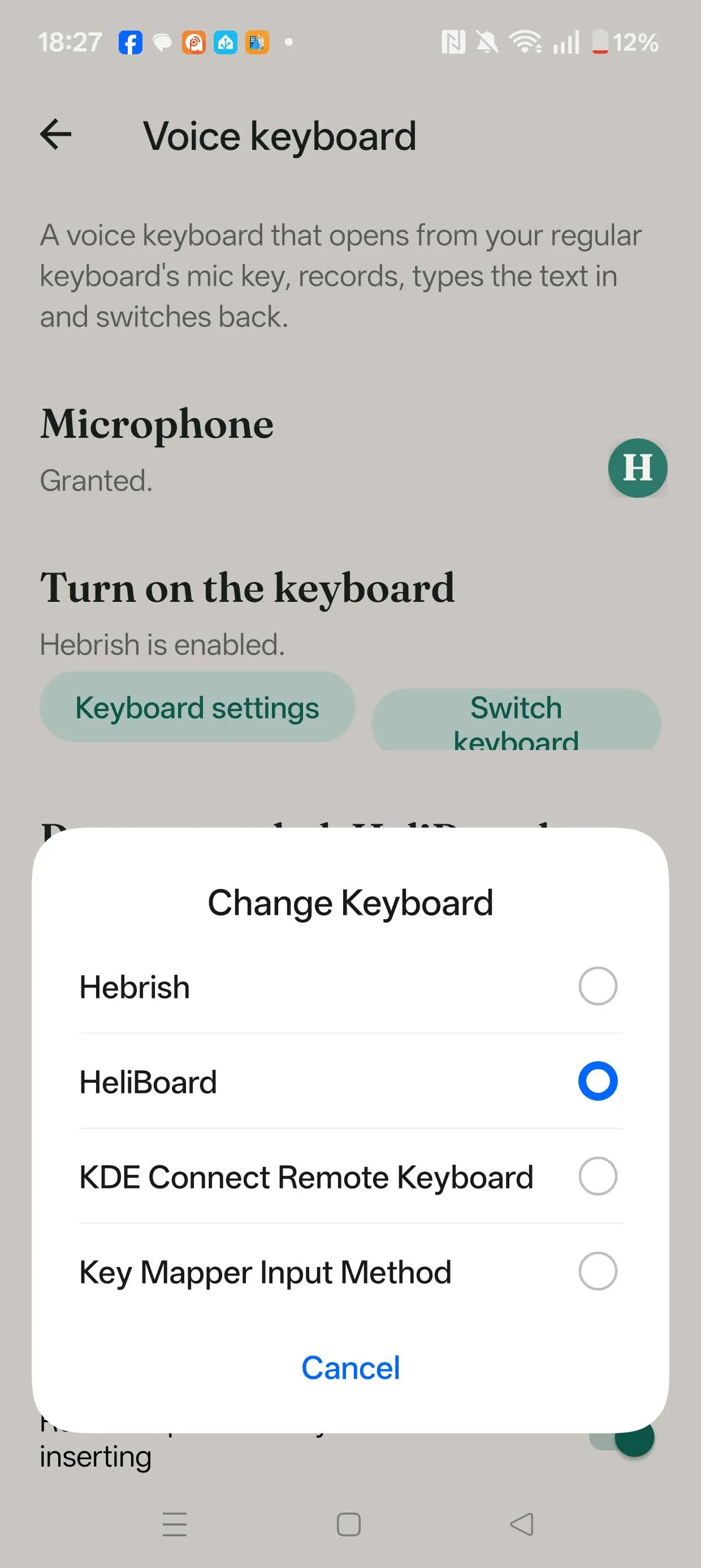
Hebrish works alongside a main keyboard. Hebrish Keyboard and HeliBoard have a mic key that opens it. Any keyboard that opens a voice input method works the same way, and you can also pick Hebrish from the system keyboard switcher.
In HeliBoard, make the voice input key visible in its settings, under Toolbar or Preferences.
Using it
Tap your keyboard's mic. Hebrish opens and starts recording at once. Tap the mic again to stop: the text goes in and you're taken back to your keyboard. Both behaviours can be switched off on the Voice keyboard screen (Start recording when opened, Return to previous keyboard after inserting).
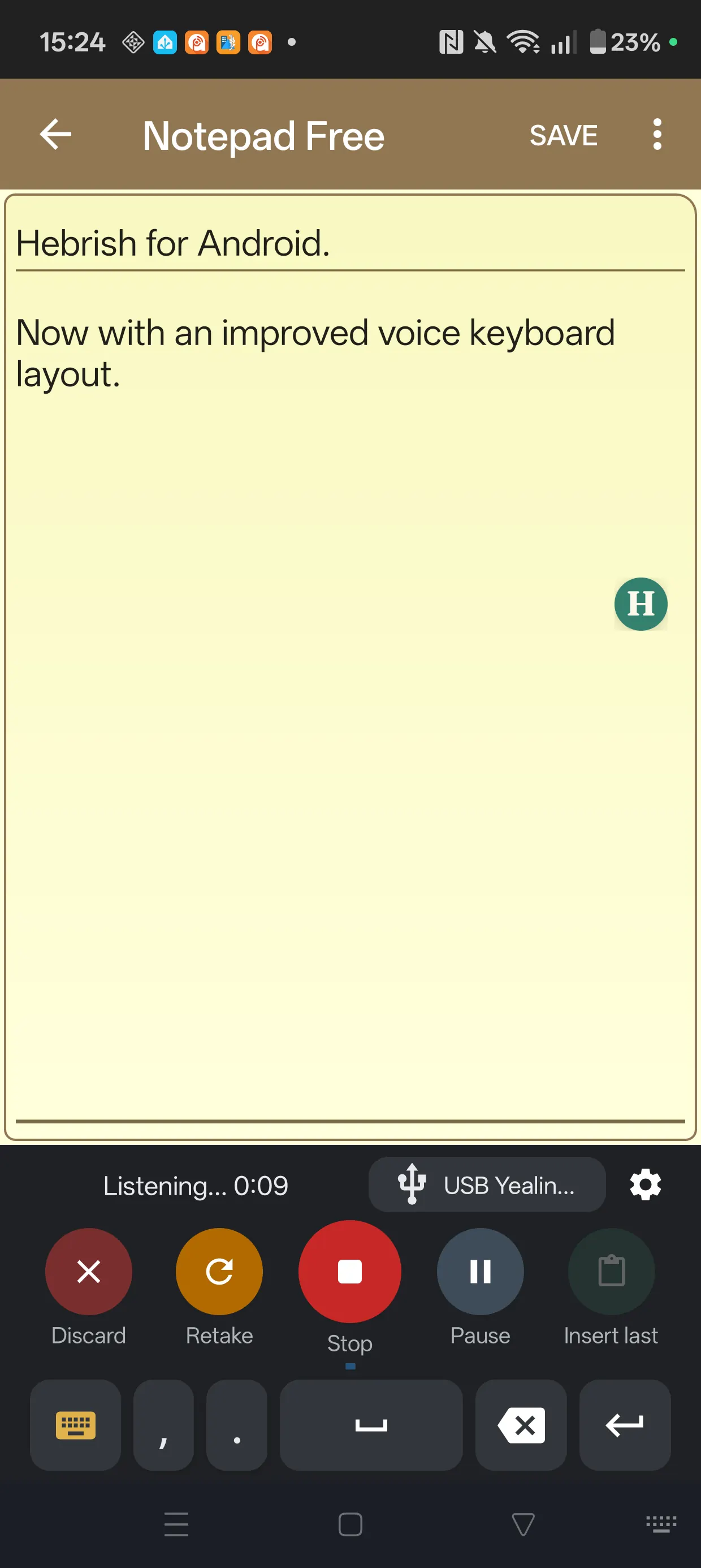
The keyboard has a row of round buttons: Discard, Retake, the mic, Pause and Insert last. Buttons that don't apply are dimmed. Below them are a gold key to go back to your keyboard, comma, full stop, space, delete and enter.
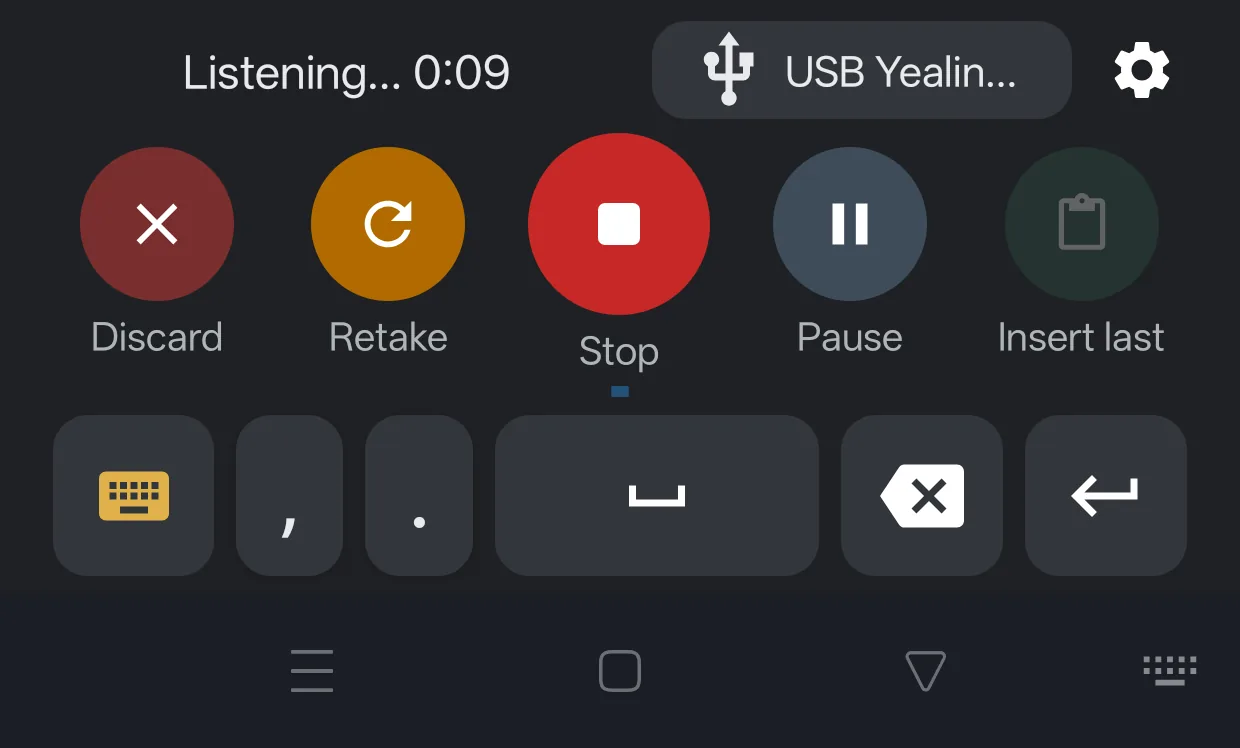
The keys work while the mic is open, so you can add line breaks by hand as you speak. Press and hold delete to remove the last sentence.
The top row shows the status and the mic in use. Tap the mic name to see every connected mic as an icon, even during a take, and tap one to use it for this session. Your standing order is under Sound, microphone and buttons.
- During a take the mic turns red with a stop square. Pause turns gold while paused. Retake throws the take away and starts again.
- Insert last types the transcript in if no text field had focus when it came back. Tap a field first. If part of the take went in and the rest missed the field, it adds only the missing words.
- Getting back: tap the keyboard key or press Back. Long-press the keyboard key for the system picker. If you leave mid-take, what you said is still transcribed and inserted first. If the automatic choice gets it wrong, set Keyboard to return to.
Hebrish doesn't type into password fields. Switch to your regular keyboard for those.
A take can run 20 minutes, and stretches are transcribed at pauses as you talk, so only the last few seconds are left when you stop. By default the text goes in when you stop. See Type as you go.