Settings
Settings apply as you change them, and a short Settings saved message confirms it.
Voice Typing
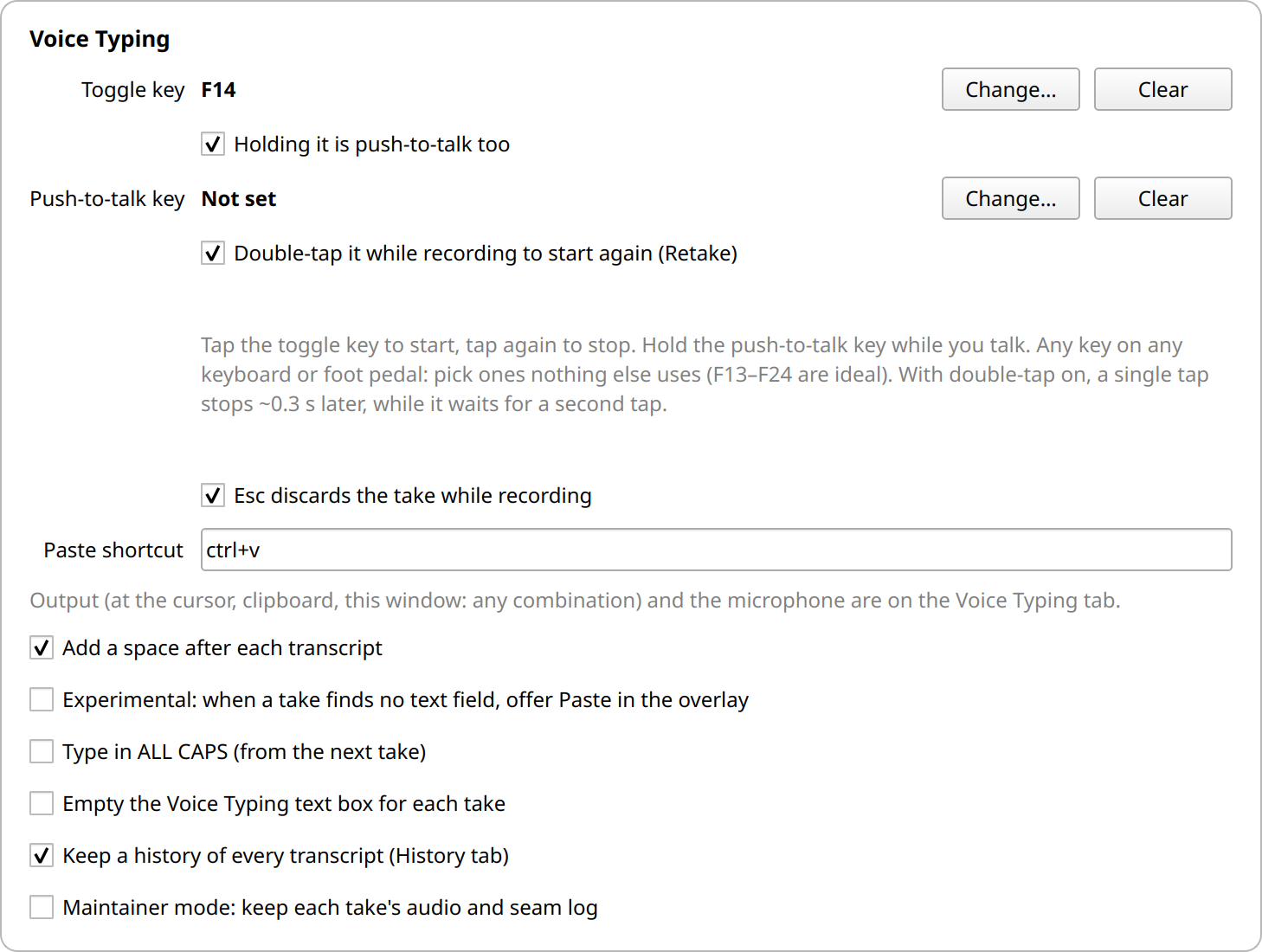
- Toggle key and Push-to-talk key: click Change… and press the key. Any key on any keyboard or foot pedal works.
- Holding it is push-to-talk too, Double-tap it while recording to start again (Retake) and Esc discards the take while recording turn those shortcuts on and off.
- Paste shortcut:
ctrl+vfor most apps,ctrl+shift+vfor terminals. - Add a space after each transcript.
- Experimental: when a take finds no text field, offer Paste in the overlay. After a take, Hebrish asks the desktop's accessibility interface whether a text field had focus. This switches that interface on for every app, and some apps report no field when there is one.
- Type in ALL CAPS. Just for fun. History and the Transcription tab keep the normal case.
- Empty the Voice Typing text box for each take. Otherwise takes collect in the box.
- Keep a history of every transcript.
- Maintainer mode keeps each take's audio beside its History row, for improving Hebrish. It stays on your computer, for 14 days and at most 3 GB. Most people should leave it off.
Microphones
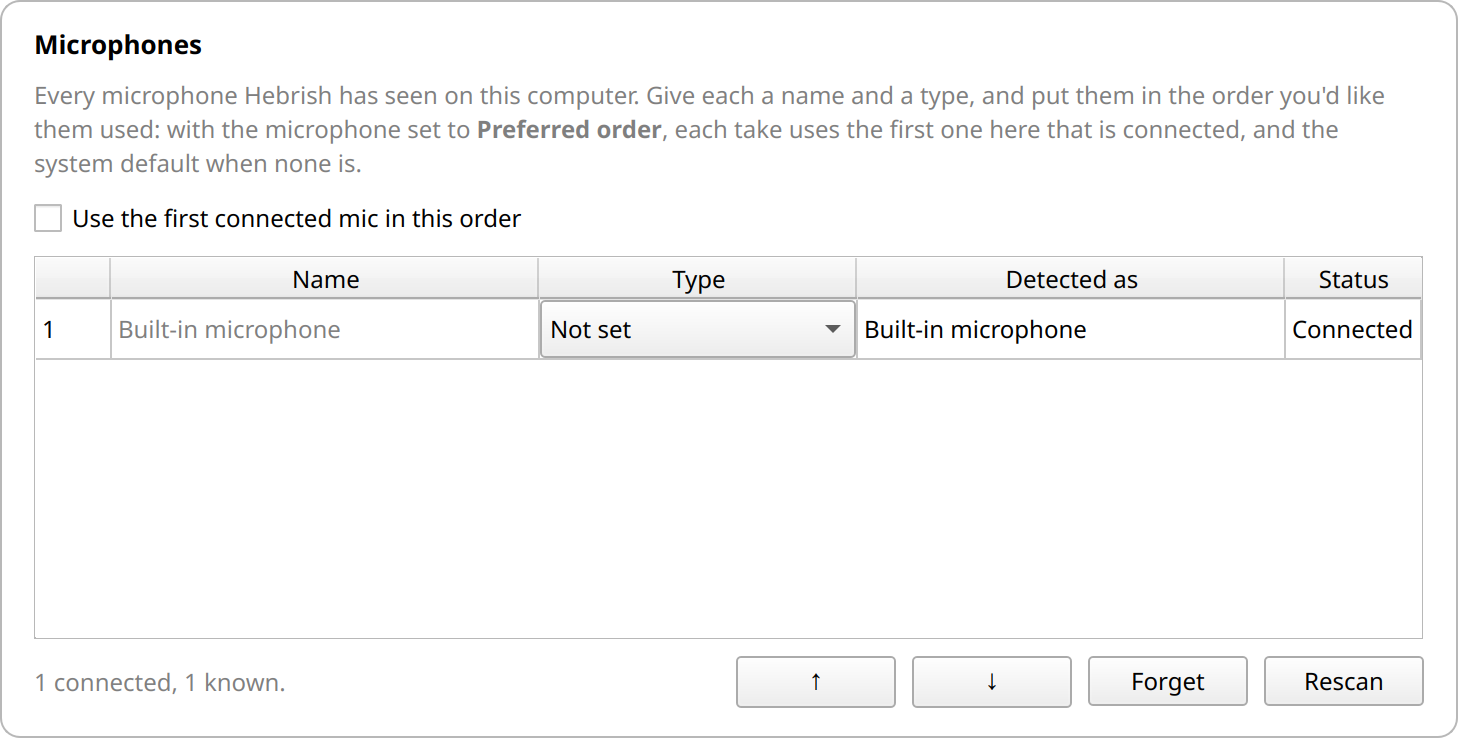
Every microphone Hebrish has seen on this computer. Give each a name and a type, and put them in the order you'd like. With Use the first connected mic in this order on, each take uses the first one here that's connected, and the system default when none is.
Action keys
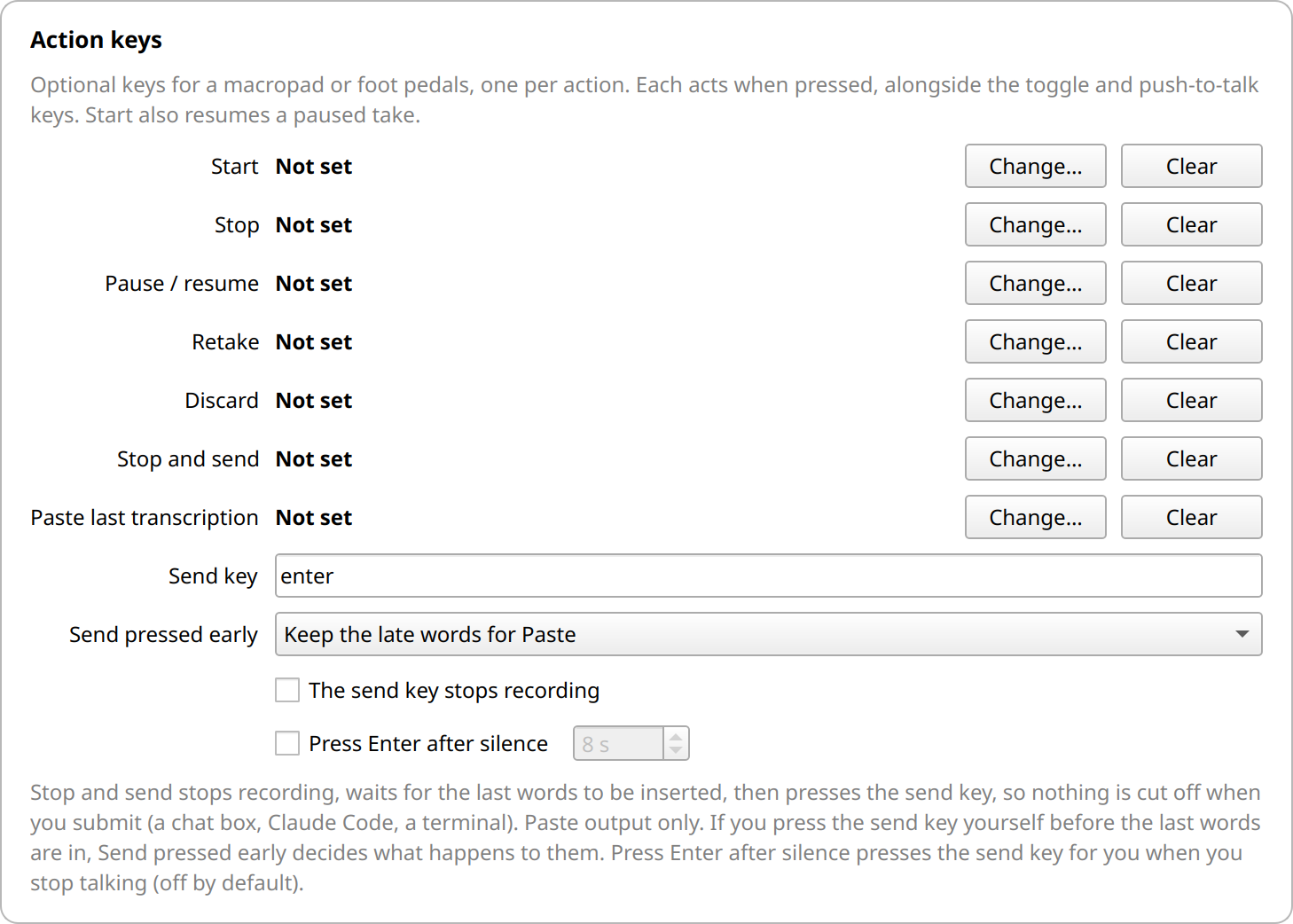
Optional keys for a macropad or foot pedals, one per action: Start (also resumes a paused take), Stop, Pause / resume, Retake, Discard, Stop and send and Paste last transcription. A key can do one job only.
Select Sabich, Select Shakshuka and Toggle model switch the active model, and a notification says which one is in use.
- Send key: what Stop and send presses.
enterfor most chat boxes;ctrl+enterorshift+enterwhere Enter starts a new line. - Send pressed early: what happens if you press the send key before the last words are in. Keep the late words for Paste puts them on the clipboard, and the overlay offers Paste. Hold the send key until they're in waits up to 4 seconds. Paste them anyway carries on.
- The send key stops recording: pressing it after text was typed ends the take, so the mic isn't left on.
- Press Enter after silence: once text has been typed and you've been quiet this long (8 seconds by default, 2 to 60), Hebrish presses the send key once. It needs Insert as you go, and it never fires while paused or stopped.
Speed
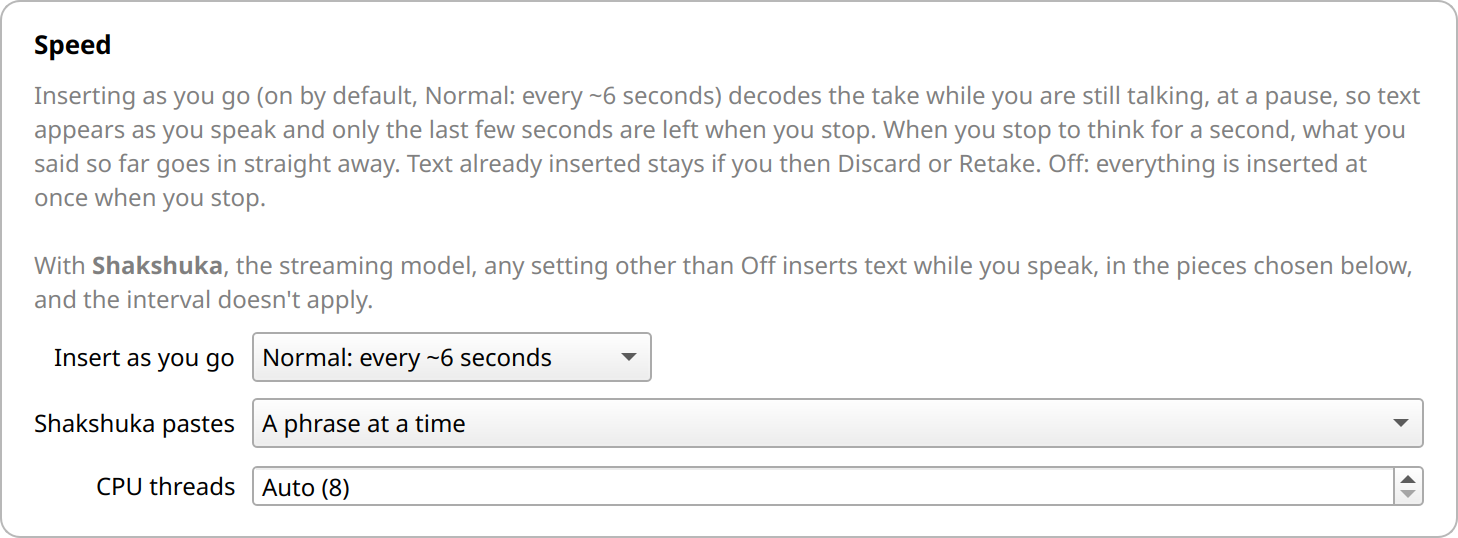
- Insert as you go: how often text goes in while you talk. Off inserts everything when you stop.
- Shakshuka pastes: with the streaming model, whether text goes in by phrase, sentence or word.
- CPU threads: Auto uses your physical cores, at most 8.
Sounds
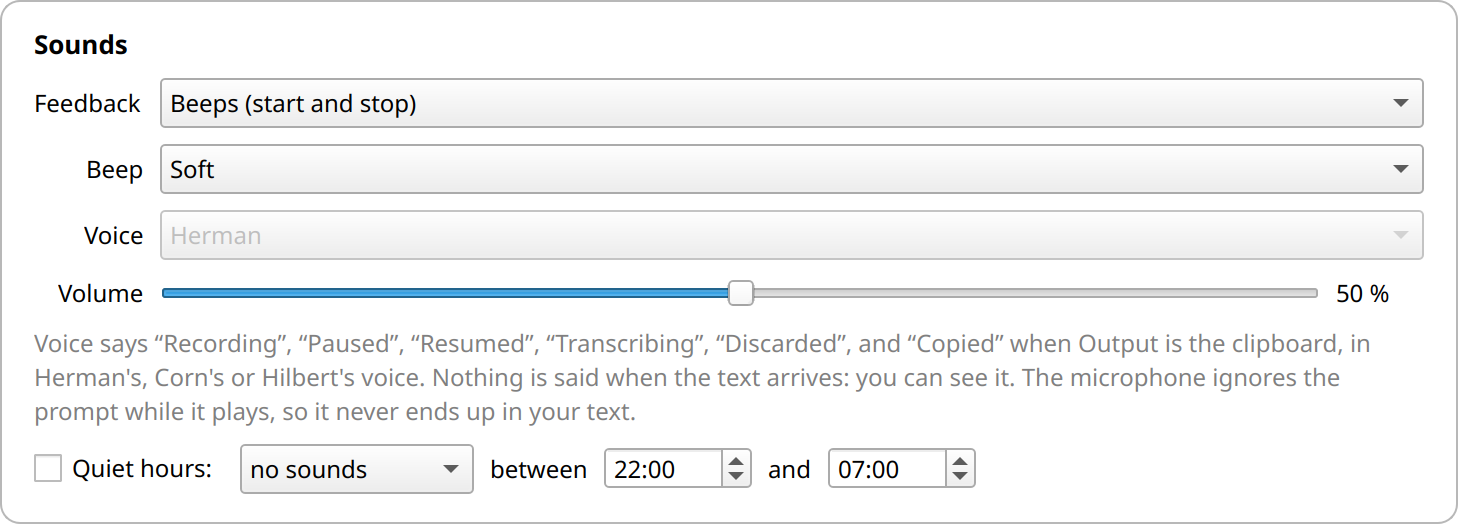
- Feedback: beeps at start and stop, a spoken voice, or nothing.
- Beep: Soft or Loud.
- Voice: Herman, Corn or Hilbert say "Recording", "Paused", "Resumed", "Transcribing", "Discarded", and "Copied" when the output is the clipboard. The microphone ignores a prompt while it plays, so it never ends up in your text.
- Volume and Quiet hours.
Floating overlay
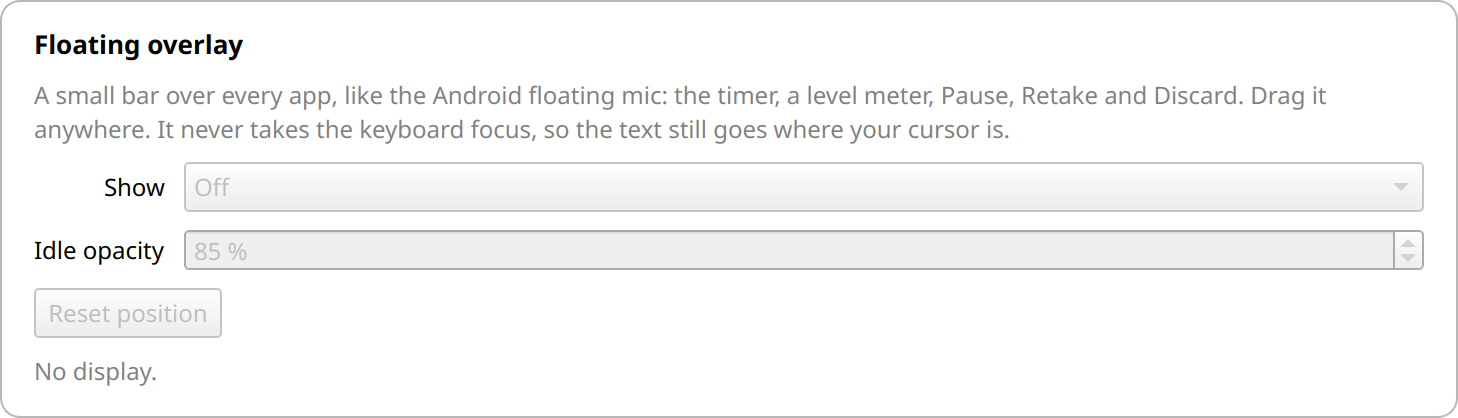
Choose when the overlay shows, how see-through it is when idle, and Reset position if you lose it.
Model updates
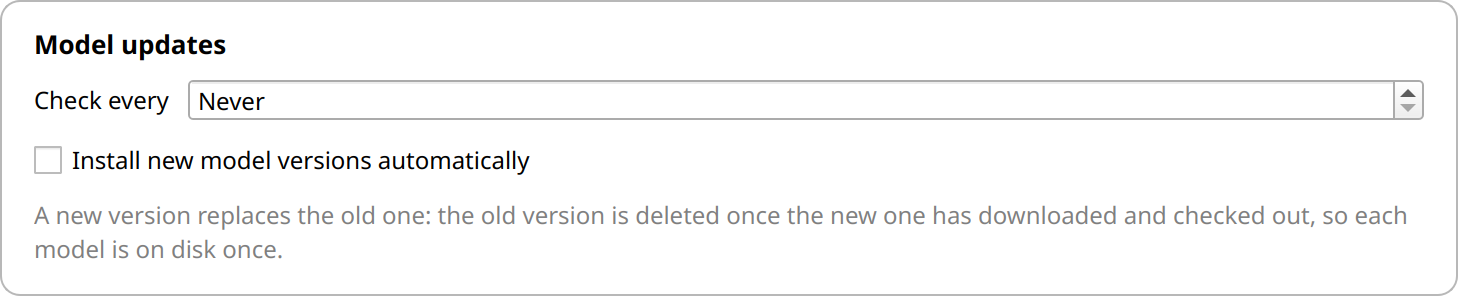
How often to check, and whether to install new model versions automatically.
App updates
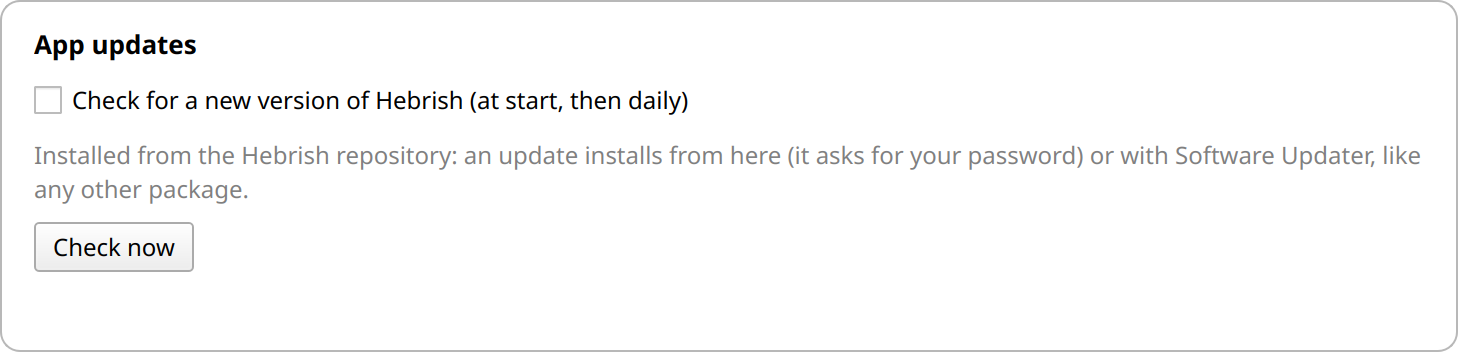
Whether to check for a new version of Hebrish at start and then daily. How an update installs depends on how you installed Hebrish.
Your data
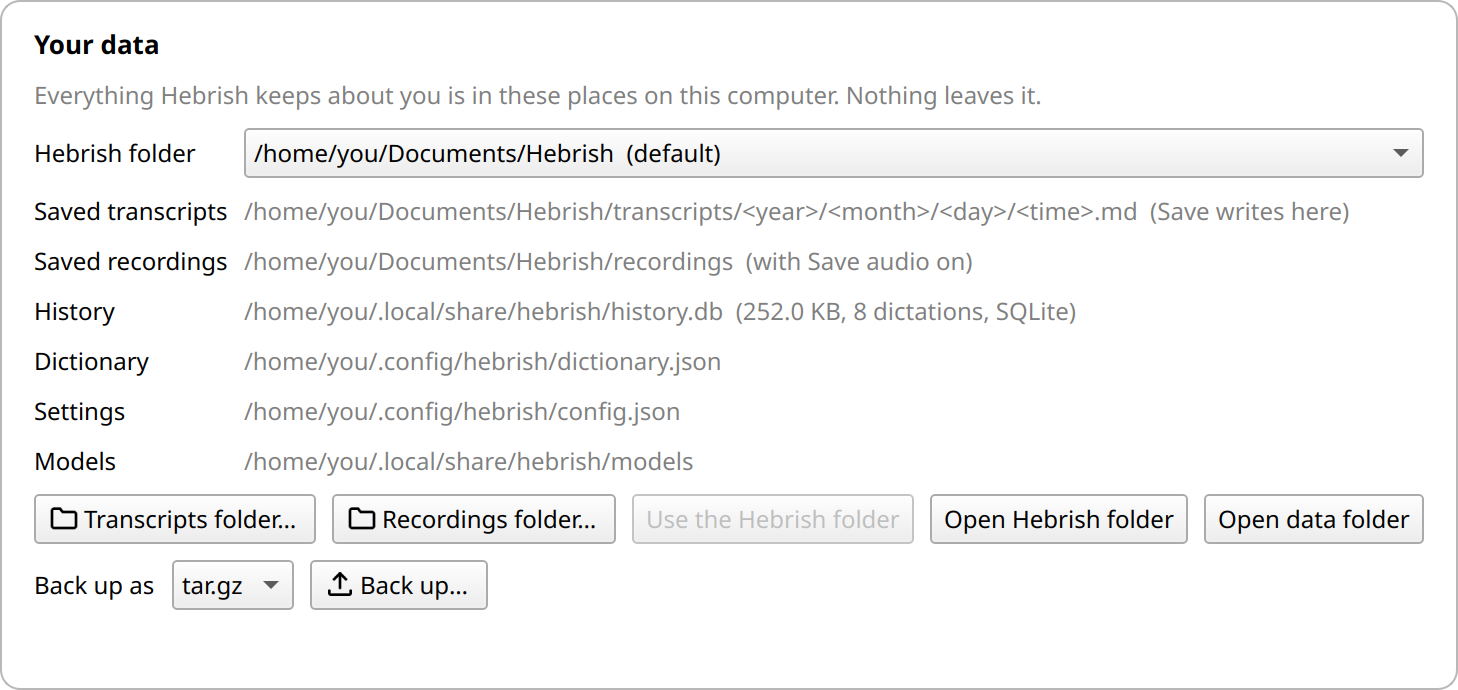
Where everything is kept, how big it is, and where your transcripts and recordings go. See Your data and privacy.
Local API
Off by default. See Local API and agents.
System
Start at login, in the tray. The card also shows the config file and app version.