Settings and history
The home screen has one screen per area, and the side menu (☰) has every screen. The bottom of home shows the app and model version.
Voice Typing
- Type as you go: off, the whole take goes in when you tap stop. On, each part goes in as soon as it's transcribed, so long takes appear while you talk; Discard then only drops what isn't in yet.
- Noise filter: a dial from 0 to 100, set to 60 at first. It keeps room noise from turning into stray words. Turn it up if words appear when you aren't speaking, and down if quiet speech gets missed. 0 turns it off.
- ALL CAPS: everything you say is typed in capitals. Just for fun.
- Transcription history: see below.
Transcription history
Every take is kept on the phone with its text, length, model and how long it took to transcribe. Nothing is uploaded.
- Export CSV saves it through the system file picker, so it can go to Google Drive, Downloads or anywhere else.
- Keep transcription history turns it off.
- Clear history deletes every take. This can't be undone.
Dictionary
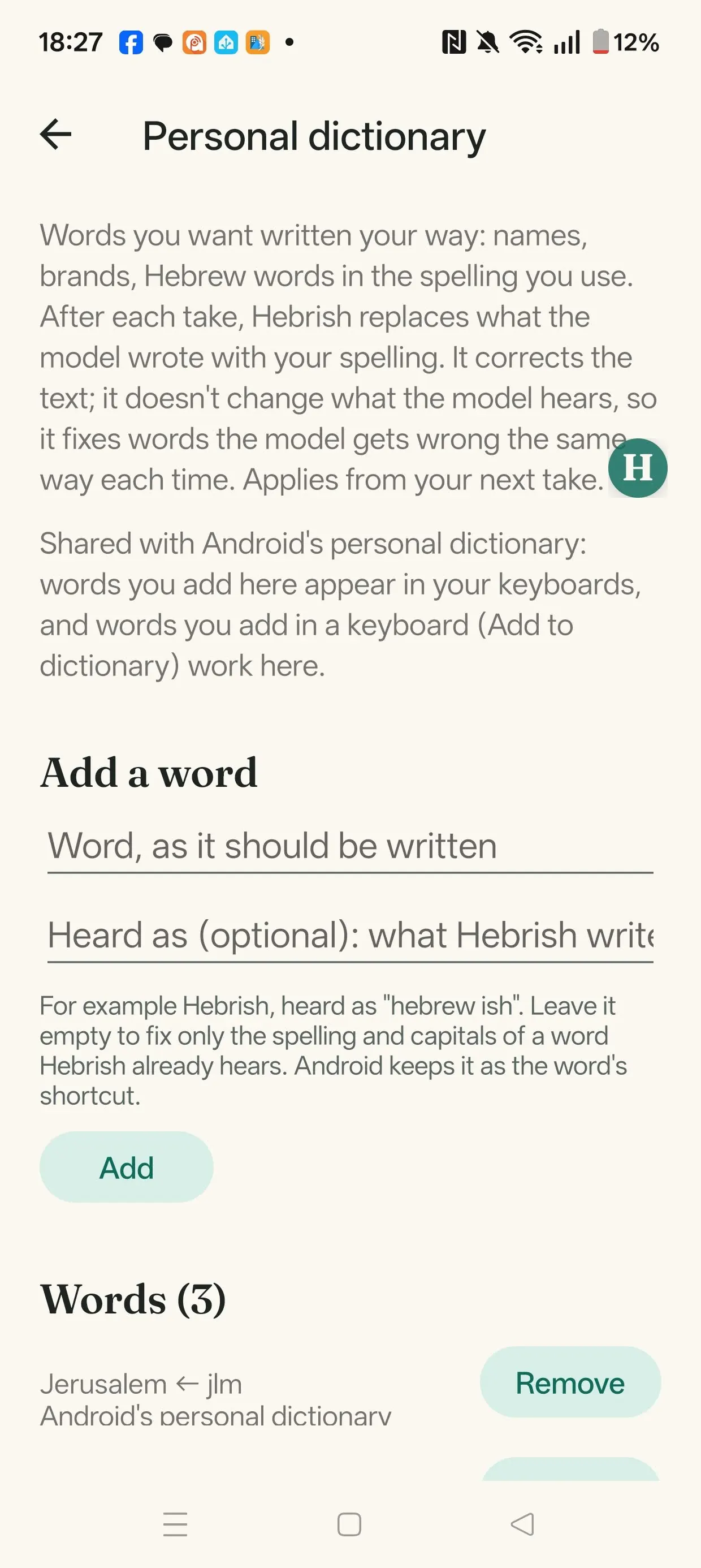
Words you want written your way, with optional heard-as phrases. It works the same way as the desktop Dictionary.
Sound, microphone and buttons
- Sounds and vibration: a beep when a take starts, stops, is retaken or discarded, and vibration at the same moments.
- Microphone: drag the types of mic (USB mic, Bluetooth mic, Wired headset and Phone mic) into the order you want. Each take uses the highest one that's connected, and USB comes first by default. To use another mic for now, tap the mic name while dictating, in the voice keyboard or the floating mic. If Android records from a different mic than the one asked for, Hebrish tells you. While a Bluetooth mic is in use, the headset switches to call audio, so music in it sounds worse until the take ends.
- Buttons and remotes: see Buttons and automation.
Install and updates
If you installed from an APK, this screen walks you through moving to F-Droid so new versions arrive by themselves.
Model location
Under Models → Model location, tap Choose folder to keep models in a shared folder, on internal storage or an SD card, so other on-device apps can load the same files. Models already in the folder are used without a download. This needs Android's All files access permission. Back to the default copies them back to app storage and leaves the shared copies in place.
Help and contact
Links to the website, bug reports, feedback and the terms. What's new lists recent changes, with no internet needed.