Voice Typing
Press a key, talk, press it again. The text goes in at your cursor, in whatever app you're using.
Start and stop
| How | What to do |
|---|---|
| Toggle key | Tap to start, tap again to stop. The default is F14; most keyboards don't have one, so set your own in Settings |
| Hold the toggle key | With Holding it is push-to-talk too on (the default), hold it while you talk and let go to stop |
| Push-to-talk key | A second, optional key that only works by holding |
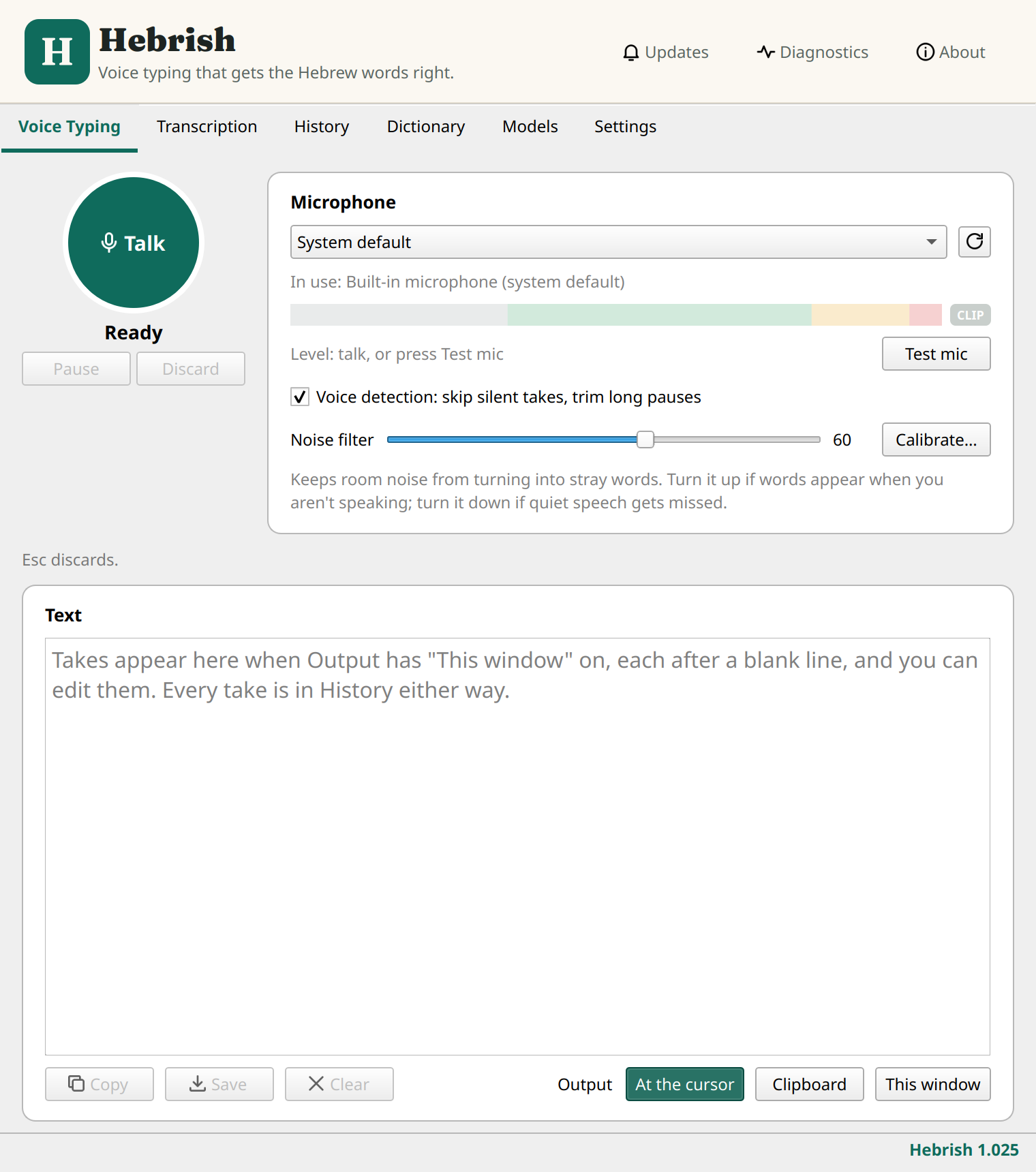
| Talk button | On the Voice Typing tab |
| Tray icon | Middle-click it to start or stop, or use Start dictation in its menu |
| Overlay | Click the mic on the floating overlay |
| Command | hebrish --toggle, for a desktop shortcut |
Any key on any keyboard or a foot pedal can be a hotkey. Pick one nothing else uses: F13 to F24 are ideal. For ideas, see the hardware guide.
While you're recording:
- Pause and Discard are under the Talk button.
- Esc discards the take. It also reaches the app you're in.
- Double-tap the toggle key to throw the take away and start again (Retake). With this on, a single tap stops about 0.3 seconds later, while it waits for a second tap.
Both shortcuts can be turned off in Settings.
Where the text goes
The Output buttons at the bottom of the tab combine, and at least one stays on. The tray has them too.
- At the cursor
- On by default. Hebrish puts the text on the clipboard and presses Ctrl+V for you, so it works with any keyboard layout, Hebrew included. On Linux your previous clipboard comes back after the paste.
- Clipboard
- The whole take is on the clipboard when it ends.
- This window
- Takes collect in the tab's editable Text box, a blank line between them, with Copy, Save and Clear.
Every take is also in History, whichever you pick. Paste last transcription in the tray pastes the last take again where your cursor is now, for when it went into the wrong window. If an early Enter kept your last words out of a message, it pastes only those words, not the whole take. You can give it a key under Action keys.
Terminals usually paste with Ctrl+Shift+V. If you mostly type into terminals, change Paste shortcut in Settings.
Insert as you go
With Insert as you go on (the default), Hebrish works on the take while you're still talking and puts the text in at a pause, so only the last few seconds are left when you stop. Text that's already in stays there if you then discard or retake. Set the pace, or turn it off, under Speed.
Microphone
The Microphone card shows which mic is in use, with a switcher and a rescan button. The level meter marks too quiet, good and loud, with a CLIP lamp if the sound is distorting. Test mic shows the level without recording.
Voice detection is on by default. A take with no speech isn't transcribed, and long silences are shortened first. It's one switch for every mode: this box, the one in Transcription Mode and Voice detection in the tray all change the same setting. It has no effect on Shakshuka with Insert as you go, which streams the sound straight to the model.
Noise filter is a dial from 0 to 100 that keeps room noise from turning into stray words. Turn it up if words appear when you aren't speaking, and down if quiet speech gets missed. Ubuntu 1.024 and later; not in the Windows build yet
Calibrate… finds a setting for this mic and room: stay quiet for 5 seconds, then speak for 10, and Hebrish suggests a Safe and an Optimized level. Nothing changes until you apply one, past runs are listed by microphone, and the recordings aren't kept. Ubuntu 1.024 and later; not in the Windows build yet
If you use several microphones, you can name them and put them in order under Microphones.
Floating overlay
A small bar over every app, like the Android floating mic. While you talk, it shows a red mic (click it to stop), a timer, a level meter, Pause, Retake and Discard. Show it from Settings → Floating overlay or the tray's Show overlay, either while you're talking or all the time. Drag it anywhere. It never takes the keyboard focus, so the text still goes where your cursor is.
Sending messages by voice
For chat boxes and coding agents, where Enter sends the message:
- Stop and send is an action key that stops, waits for the last words to go in, then presses your Send key, so nothing is cut off.
- Press Enter after silence presses the Send key for you once you've been quiet for a set time.
- The send key stops recording ends the take when you press Enter yourself.
All three are under Action keys. They're off by default, because an unexpected Enter in another app can send or run something.
The tray
Closing the window leaves Hebrish running in the tray. Its menu has Start dictation, Paste last transcription, Show overlay, Show window, Output, Active model, Voice detection, Start at login, update checks and Quit.
Active model switches between Sabich and Shakshuka. A model you haven't downloaded is greyed out, and a switch made during a take applies when the take ends.