Set up the phone
Hebrish on Android types your voice into any app, in two ways: a voice keyboard that opens from your regular keyboard's mic key, and a floating mic that sits over every app. Use one or both.
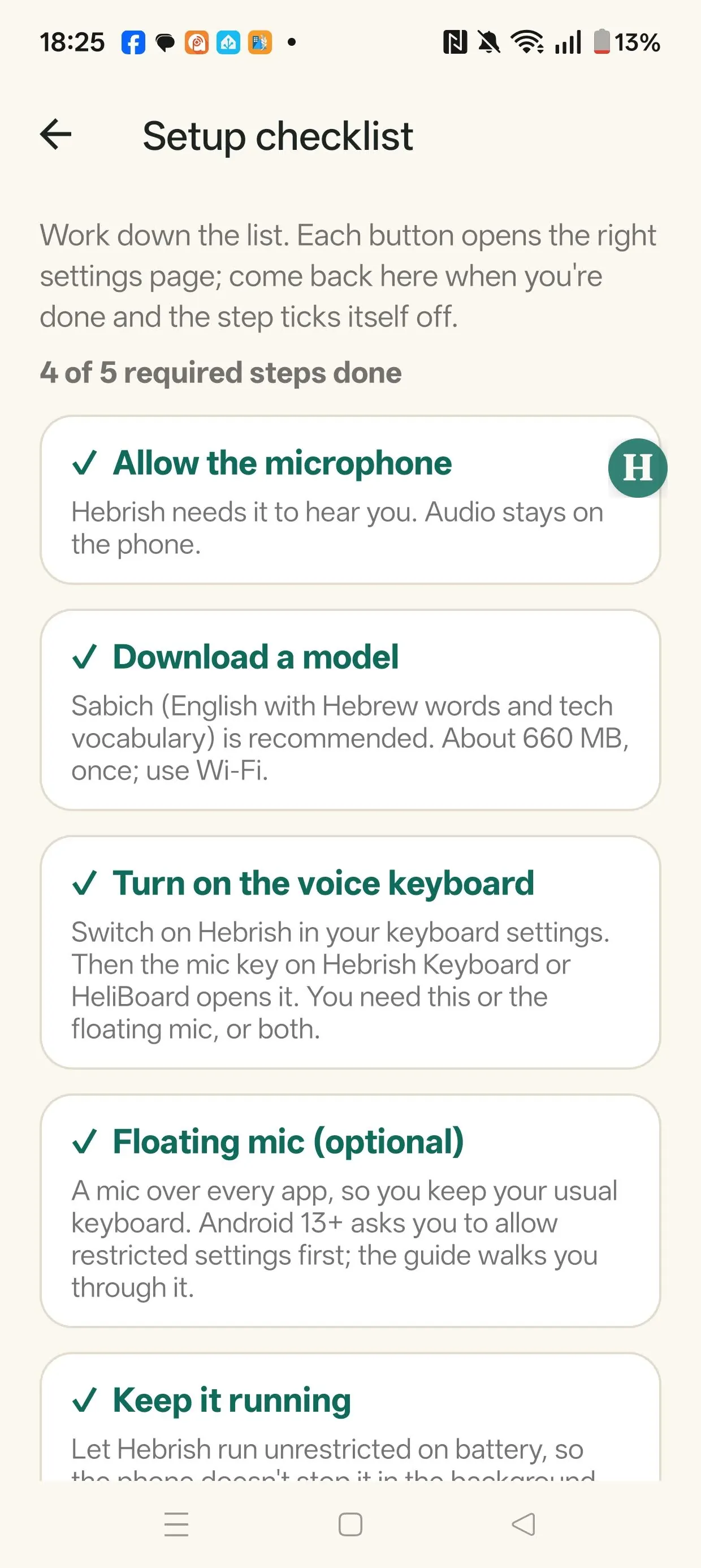
The app's home screen opens with a Setup checklist. Work down it: each button opens the right settings page, and the step ticks itself off when you come back. The same steps with more detail are at hebrish.app/setup.
Note
Android 1.019 has only been tried on one phone so far. If a step doesn't match what you see, tell Daniel.
1. Install
See Install Hebrish.
2. Allow the microphone
The app asks for it. If you refused twice, Android stops asking: open App info → Permissions → Microphone.
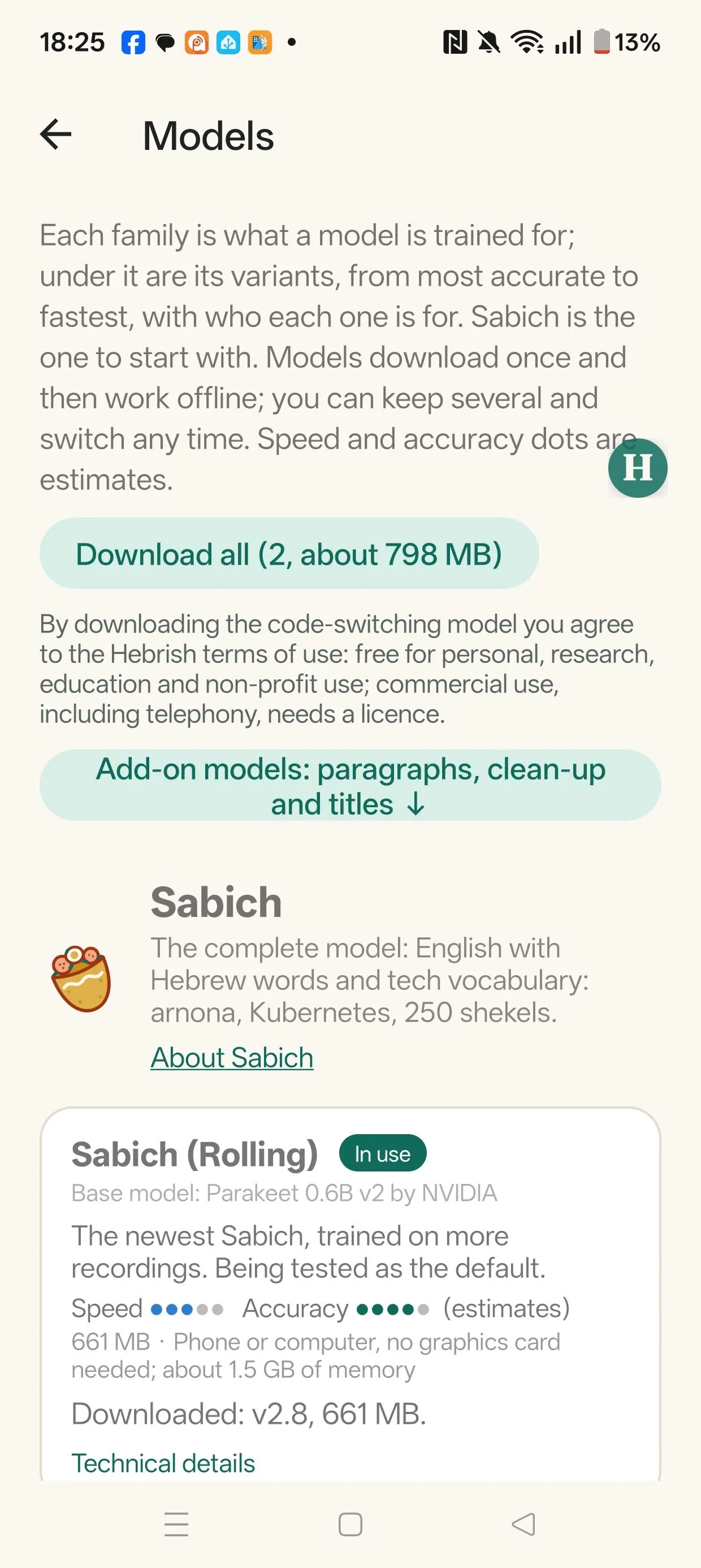
3. Download a model
Models lists each family with its versions, from most accurate to fastest. Sabich is the recommended one and what a new install uses. Each is about 660 MB, downloaded once, so use Wi-Fi. A download resumes if it's interrupted.
- Download one model, or Download all to queue every model.
- Use this model switches the keyboard and floating mic straight away. Models stay on the phone until you Delete them, so switching back is instant.
- When a newer version is out, Update to … appears. The old version stays in use until the new one is downloaded and checked, and is then deleted.
- Add-on models at the bottom of the screen are for Transcription Mode.
To hear it before setting anything else up, tap Try it now. It opens a notepad with a mic button: tap, talk, tap again.
4. Turn on the voice keyboard
Open Keyboard settings from the checklist and switch on Hebrish. Then see Voice keyboard.
5. Turn on the floating mic (optional)
Follow Floating mic → Turn it on: step by step, or see Floating mic.
6. Keep it running
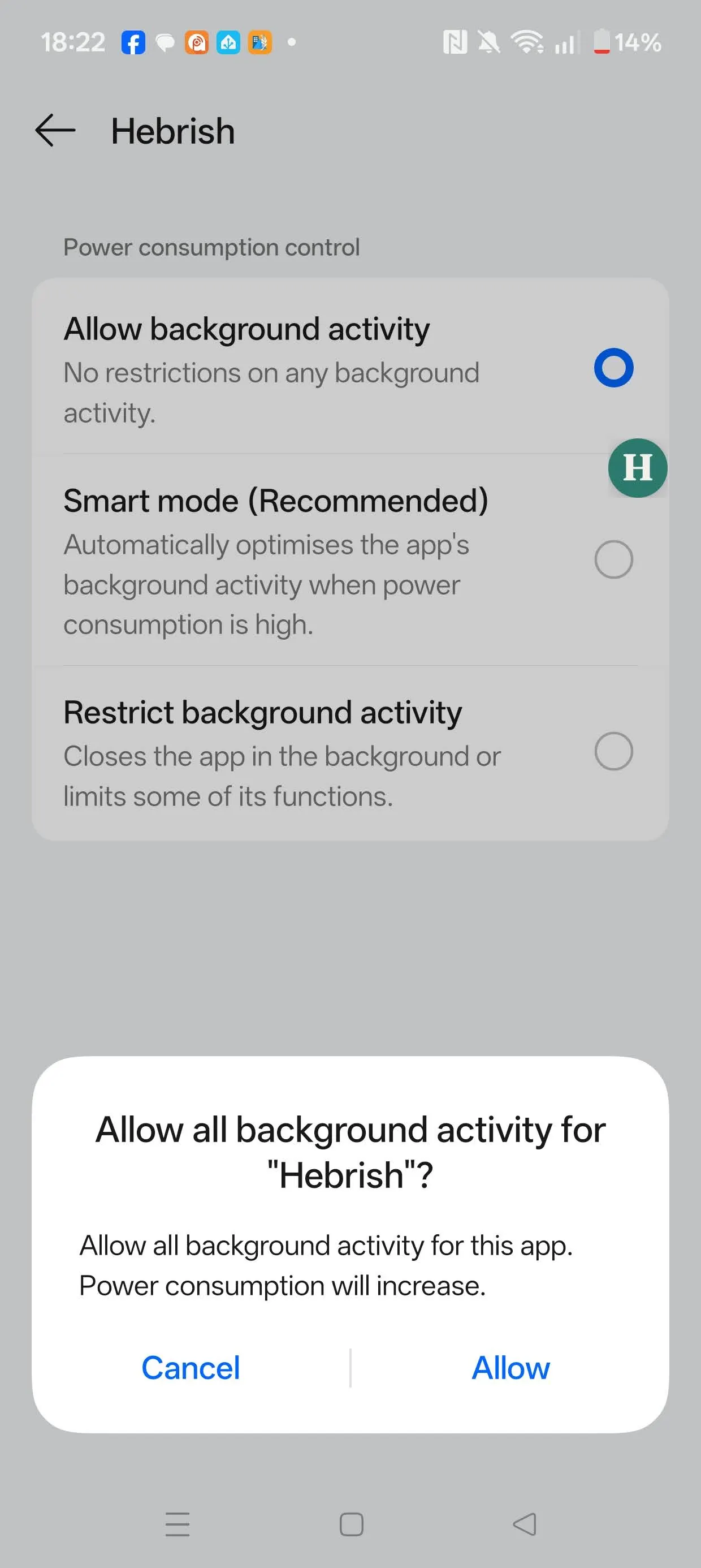
- Battery: in App info → Battery, choose Unrestricted, so the phone doesn't stop the floating mic in the background. OnePlus, Xiaomi and Samsung phones are among those that do.
-
Pause app activity if unused: switch it off. Otherwise Android takes away the microphone permission if you don't open the app for a few months.
-
Record in the background (optional) is only for keeping a long Transcription Mode recording going with the screen off.