Transcription
Use the Transcription tab for anything longer than a quick message: a long recording, or an audio file you already have.
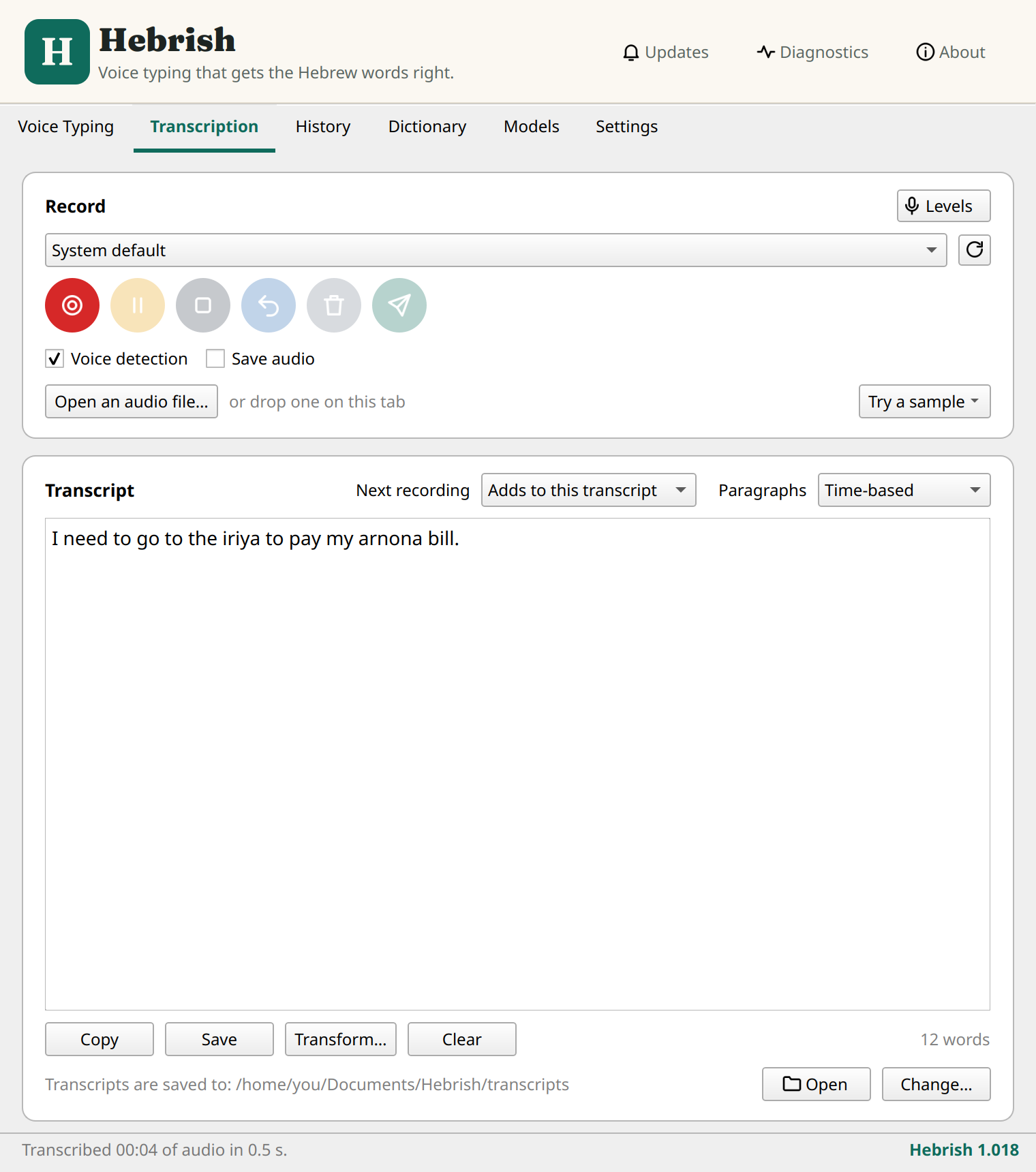
Get audio in
Record. The row of round buttons is Record, Pause, Stop, Retake, Discard and Transcribe. Stop, then Transcribe when you're ready. This tab has its own microphone choice, separate from Voice Typing. Levels shows or hides the gain and level meter. A recording can run up to 4 hours; it is tested for 90-minute sessions.
Open a file. Use Open an audio file… or drop one anywhere on the tab. With ffmpeg installed Hebrish reads any format; without it, WAV, FLAC, OGG and MP3.
Try a sample. Recordings that come with the app: three one-minute read scripts, and a real 67-minute voice note that shows how long recordings run on your computer.
Voice detection skips silent stretches and trims long pauses first. It is the same switch as on the Voice Typing tab and in the tray. Save audio keeps a copy of each recording.
The transcript
The text lands in an editable box.
- Next recording decides what a new recording does: Adds to this transcript, or Starts a new transcript (the earlier one stays in History).
- Paragraphs: None, Time-based (a new paragraph about every 30 seconds, at a pause) or Paragraph model (a small add-on finds where the topic moves on).
- Copy and Clear do what they say.
Save
Save writes the transcript as a Markdown file to your Hebrish folder, by default Documents/Hebrish/transcripts, one folder per year, month and day. It never overwrites a file. The folder is shown under the box, with Open and Change….
Each saved file starts with its title, date, model and audio length. If you edited the transcript or Clean up changed it, the raw transcription is kept beside it.
With the title add-on downloaded, saved transcripts get a short title in the file name and heading.
Clean up
Clean up tidies each finished transcript on your computer: punctuation and capitals, filler and repeated words, numbers and currency, and paragraphs. It's off by default and needs a clean-up add-on: S1-mini by Superwhisper (the default) or S1-ASR-Cleanup (experimental). See Add-ons. If anything goes wrong, you keep the text as transcribed.
Save cleaned copy runs the clean-up model and saves the result as its own file, leaving the original as it was.
Transform
Transform… rewrites a transcript with one of 206 ready-made prompts: a business or casual email, a to-do list, meeting minutes, a post, data formats and more.
Filter the prompts by type and style, or search. You can edit a prompt to make it your own (Save my version) and restore the original (Reset to original). Your transcript is never changed: copy the result, or use Save as a version to keep it beside the transcript.
Transform is experimental. It needs the transform add-on (Qwen3 4B Instruct, 2.5 GB), runs offline on your processor, and takes tens of seconds on a laptop.